
 EDU Education Network Email Registration Application
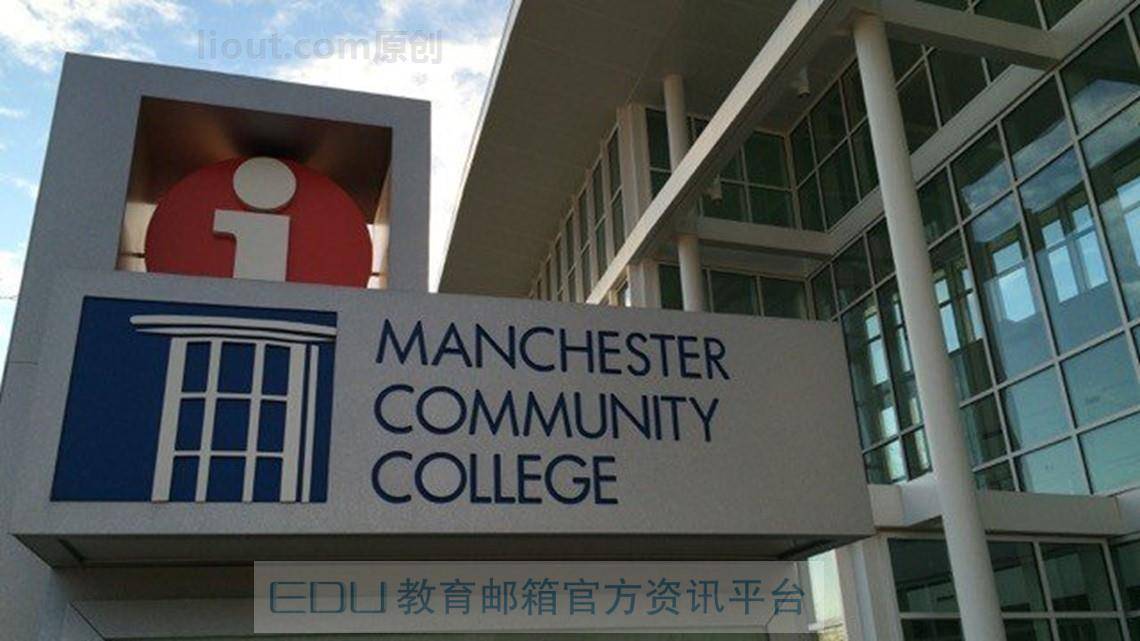
School Introduction
United States of AmericaManchester Community College - Manchester Community College (abbreviation: MCC) is a two-year public community college founded in 1945 and located in Manchester, Hillsborough County, New Hampshire. Originally known as New Hampshire Community Technical College Lagonia, in 2008 the branches of New Hampshire Community Technical College were renamed and are part of the New Hampshire Community College system.
MCC is the state's largest community college, serving more than 15,000 students annually, including nearly 6,000 undergraduate students in credit programs and more than 7,000 noncredit and 2,000 credit extension students each year. Its annual budget exceeds $31 million. In 1996, MCC was recognized by the Harry S. Truman Scholarship Foundation as an "Honors Institution" for "history of excellence in fostering and encouraging academic, intellectual, and motivational excellence in students." Manchester Community College remains the only accredited U.S. community college.
Application Information
Manchester Community College provides each student and employee with a University e-mail address. Email addresses are generated within 24 hours of your initial course registration, acceptance into the MCC program, or hiring. Your e-mail account is the official means of all electronic communication between you and the University.
An email from the NH Community College System (CCSNH) will be sent to your personal email account after accepting a college offer or registering for classes. The email contains your EasyLogin username and CCSNH student email address. The email also contains instructions for creating a password and activating your EasyLogin account.
Official website: https://www.mccnh.edu E-mail suffix: @students.ccsnh.edu
Apply online at https://sis.ccsnh.edu/ssb8/bwskalog.P_DispLoginNon Click on the following image: "First time user account creation"

To apply for an EDU email address at Manchester Community College, we recommend using a New Hampshire U.S. citizen profile. Select "First time user account creation" to create a user account for the first time. After logging in, select "Manchester Community College" to begin your application. Of course, you can also apply to other community colleges.
Note: If the "Application Type" application type cannot be selected, the community college is not currently open for online applications.
Successful application
There is an approximate wait time of 10 days after the application is submitted, the exact length of the wait varies from person to person. You will receive an email from Manchester Community College with the subject line "Welcome to CCSNH" containing your EasyLogin username, student EDU email.
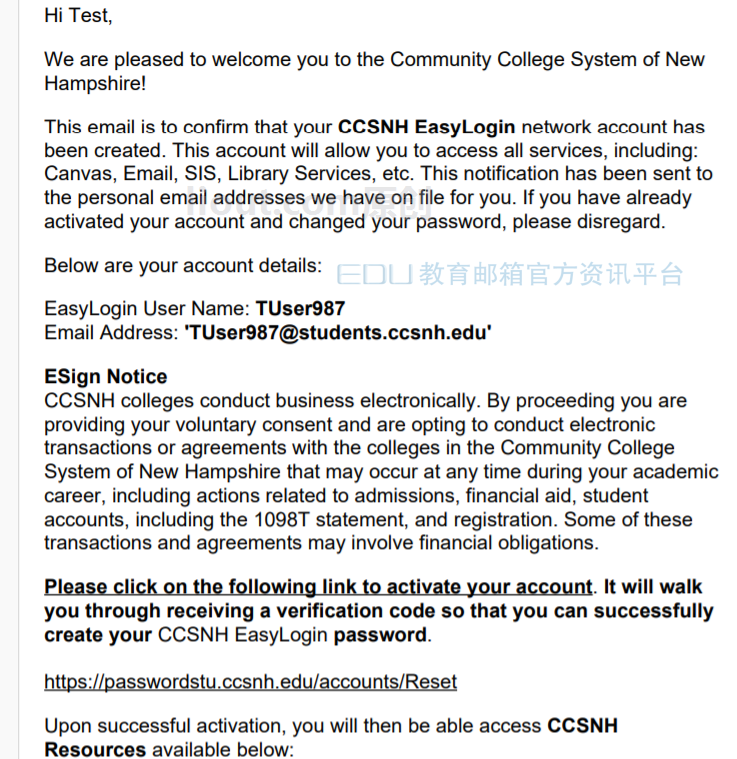
We are excited to welcome you to New Hampshire's community college system!This email is to confirm that your CCSNH EasyLogin web account has been created. This account will allow you access to all services including:anvas, email, SIS, library services, etc. This notification has been sent to the individual email address we have on file for you. If you have already activated your account and changed your password, please ignore it. Here is your account information:ss987Email address: "TUser987@students.ccsnh.edu"
Email Login
Mailbox format:EasyLogin_Username@students.ccsnh.edu
Your email address is your Easy Login username followed by @ students.ccsnh.edu
Login: https://login.microsoftonline.com
Reset Password
go intoEasyLogin Portal.Reset password: https://passwordstu.ccsnh.edu/accounts/Reset Get the verification code by email and set a new password afterward.
Provide your EasyLogin username and click Continue. Identify the personal e-mail address to which you would like the verification code to be sent.
Access that personal email account, find the verification code, and then enter that code on the EasyLogin Password Reset screen.
If you do not receive an email within a minute, be sure to check your spam and junk folders for emails ending in @ ccsnh.edu.
You can then create a new password. It must be 14 characters long - letters, numbers, special characters (any character other than a space is allowed). It is also possible to use paraphrases, such as "not together" or "wintersnowmakesmehappy".
如果您没有收到CCSNH电子邮件,请通过mccitsupport@ccsnh.edu 与MCC帮助台联系。
forgotten password?
Go to the EasyLogin portal.web addressbecause ofhttps://passwordstu.ccsnh.edu/showLogin.ccand then click " Reset Password"Link.
- Provide your EasyLogin username and domain=Student.
- Determine the method of recognition - security issuemaybeEmail Verification. -Anything you set up when you first apply for an EasyLogin account.
- Complete the steps and set a new password.
如果不成功,请通过电子邮件与“我的客户中心”帮助台联系- mccitsupport@ccsnh.edu或致电-(603)206-8080以寻求帮助。
Mobile access
Email can also be accessed from most mobile devices. Here is a quick tutorial on setting up student email on your iOS or Android device.
- surname CongApple Storemaybe Google Play StoreDownload and launch the official
 Microsoft Outlook App.
- Select the Add Account option.
- Press the Office 365 button.
- Enter your @ students.ccsnh.edu email address.
- When you enter the easylog in When the password is used, you will be redirected to the CCSNH central login screen.
- Enter your easylog in Password.
- You will then be redirected back to the Outlook App with the account added.
- To get more support. Visit Microsoft's FAQs about iOS and Android OutlookThe


OneDrive Storage
Everyone in the My Client Center (MCC) has OneDrive storage that can be used on and off campus. Please review the document below for details on how to log in to OneDrive and tips on how to use it.
Special Tip:
- Information with stored data in OneDrive and the sharing of this data must comply with theCCSNH Systems Strategy 562.06 Information Security PolichÿThe
- CCSNH is unable to recover accidentally deleted files from OneDrive. Instead, all users have the ability to recover deleted files from their Recover Deleted Files from OneDrive Recycle B in 30 days. after 30 days, it disappears and cannot be recovered.
free office365
All MCC students and employees have access to and have the option to install free copies of Office 365 products. Please follow the instructions below to access or install a copy of Office 365 applications on your personal computer using your MCC email account.
- Everyone can log into their MCC email account using their EasyLogin username and password.
- schoolchildrenMCC Office 365 email account - student access.
- workersMCC's Office 365 Email Accounts - Employee AccessThe
- In the Inbox, click the Application Launcher iconThe

3. ClickOffice 365The

4. Click " Install Office Apps"to install Office 365 on your PC, or you can access any of the applications available through your web browser by clicking on the application icon.


Technical Support
Submitted by e-mailmalfunctionsSingle: mccitsupport#ccsnh.edu
Official Help Desk Hours: Mon-Fri: 8am-5pm Sat-Sun: Closed


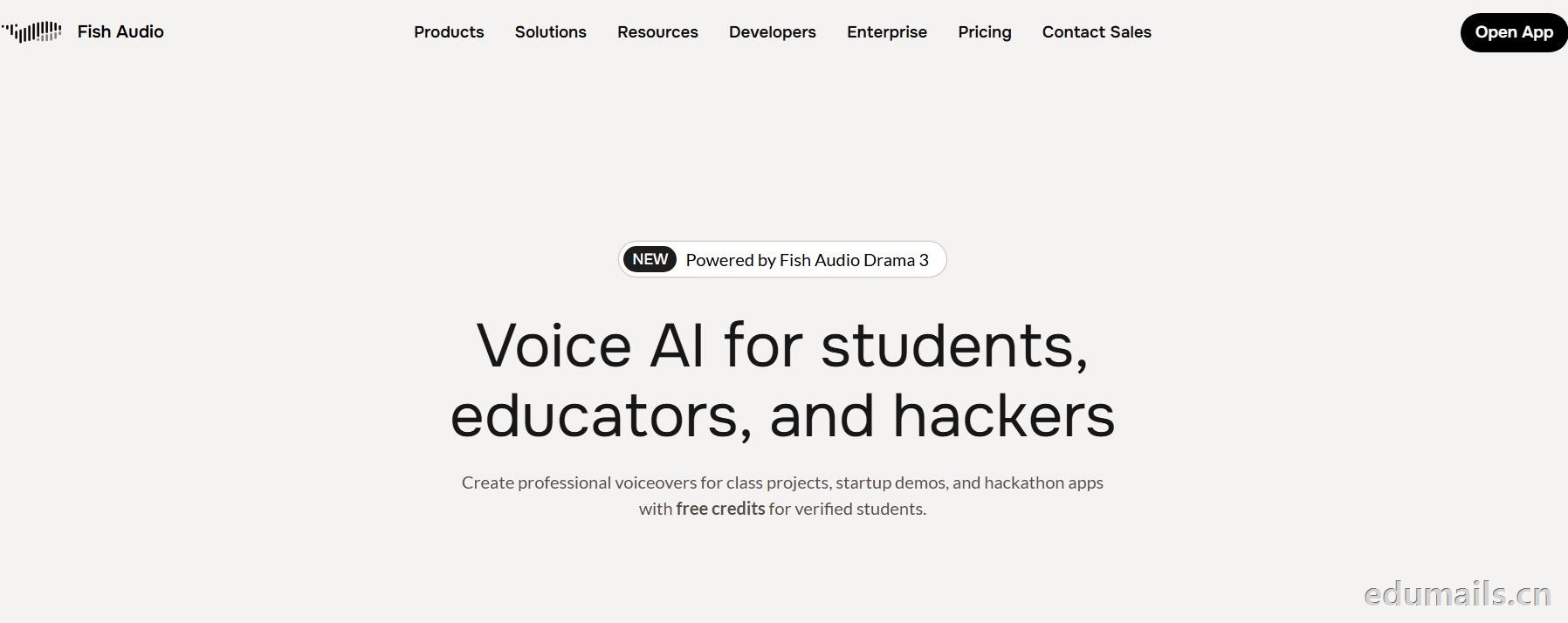 英文领取链接:https://fish.audio/app/claim/students/
中文领取链接: https://fish.audio/zh-CN/app/claim/students/
用 .edu 学生邮箱认证,领“免费积分”,做课堂/黑客松/毕设/校园项目配音和声音克隆,但不能商用。学生、教育工作者、黑客松选手都算目标人群。
免费积分(数额不公开,叫“generous credits”)可用全部语音模型、TTS、声音克隆(10 秒录音复刻音色)支持多语言(页面写 8 种/83 种说法不一,以账号内为准),含 完整 API 权限(接代码、做 Demo、黑客松 App 都能用),可申请当“校园大使”:每月额外积分 + 抢先体验新功能。
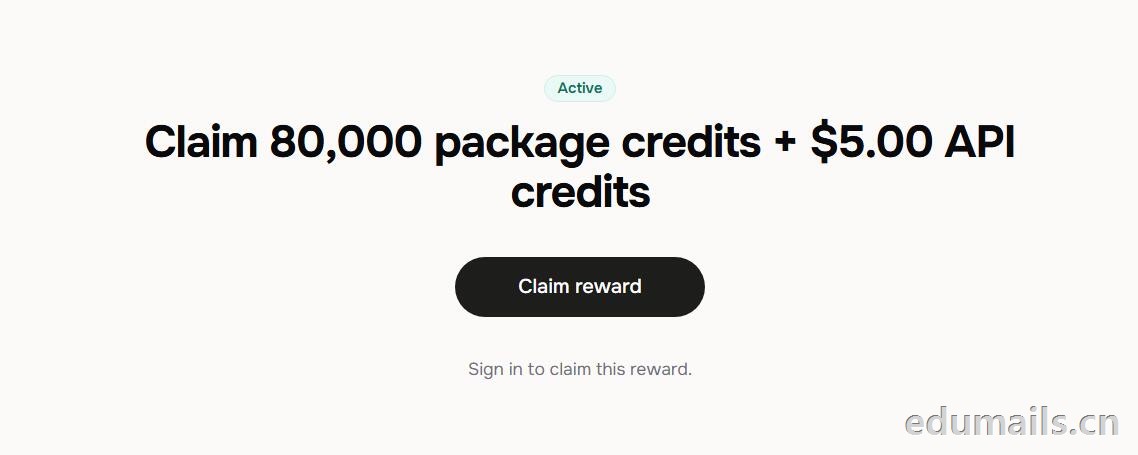 根据本站测试:额度为Claim 80,000 package credits + $5.00 API credits 领取 80,000套餐积分+$5.00 API 积分
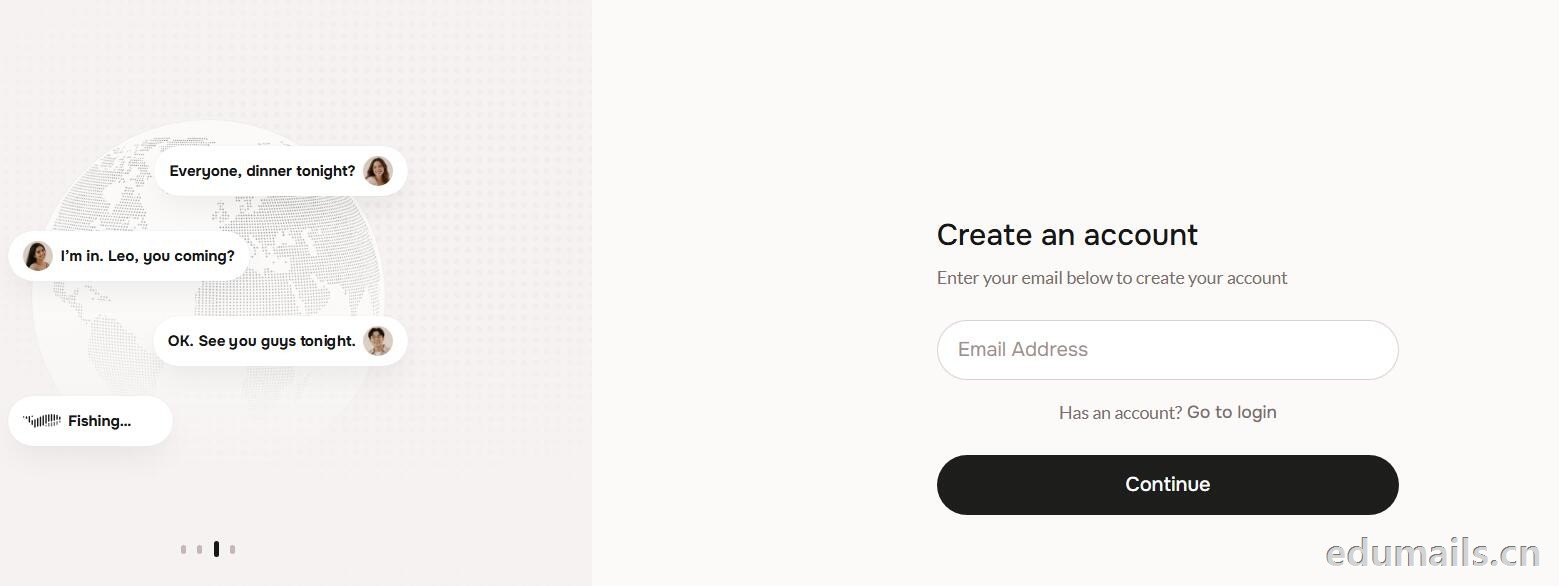
 提示创建账户:https://fish.audio/auth/signup/ 我们直接用美国edu邮箱进行注册演示。
Ps:我们如果在其他地方购买美国edu邮箱,一定要问是否为正规的,因为很多邮箱都是盗用的扫号来的,无法修改密保,也无法保证邮箱使用时间,所以我们不要贪图便利在某鱼购买。
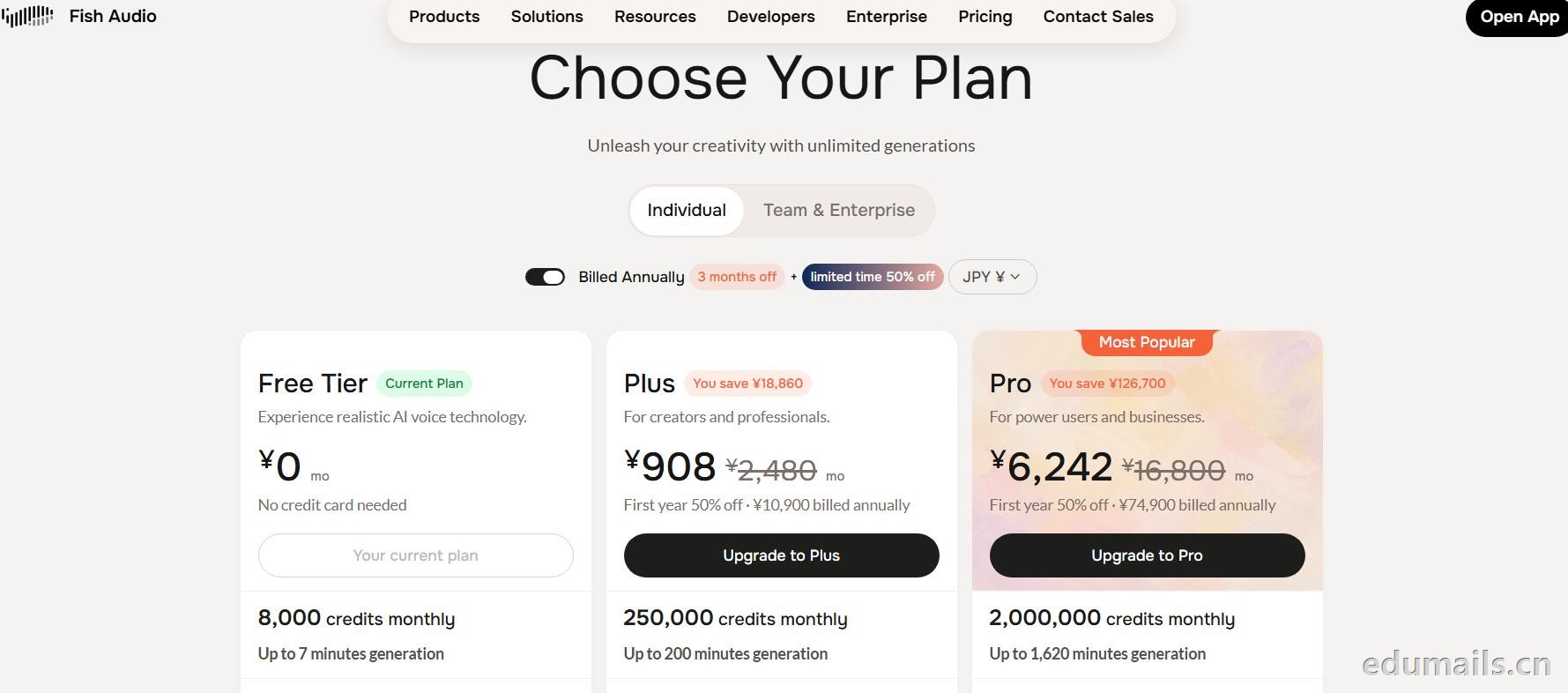
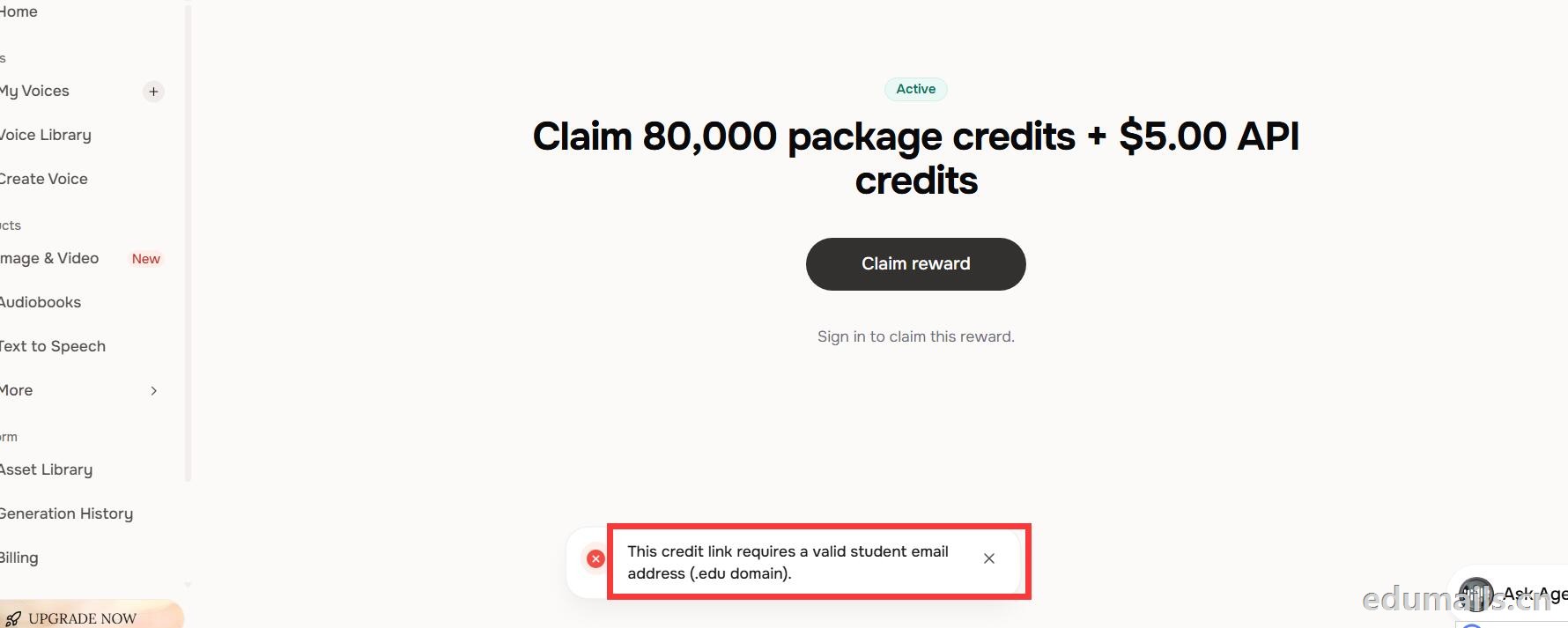 我们查看团队设置https://fish.audio/zh-CN/app/team/?tab=usage 里面是没有领取80,000积分的赠送额度。只有赠送的8000额度。
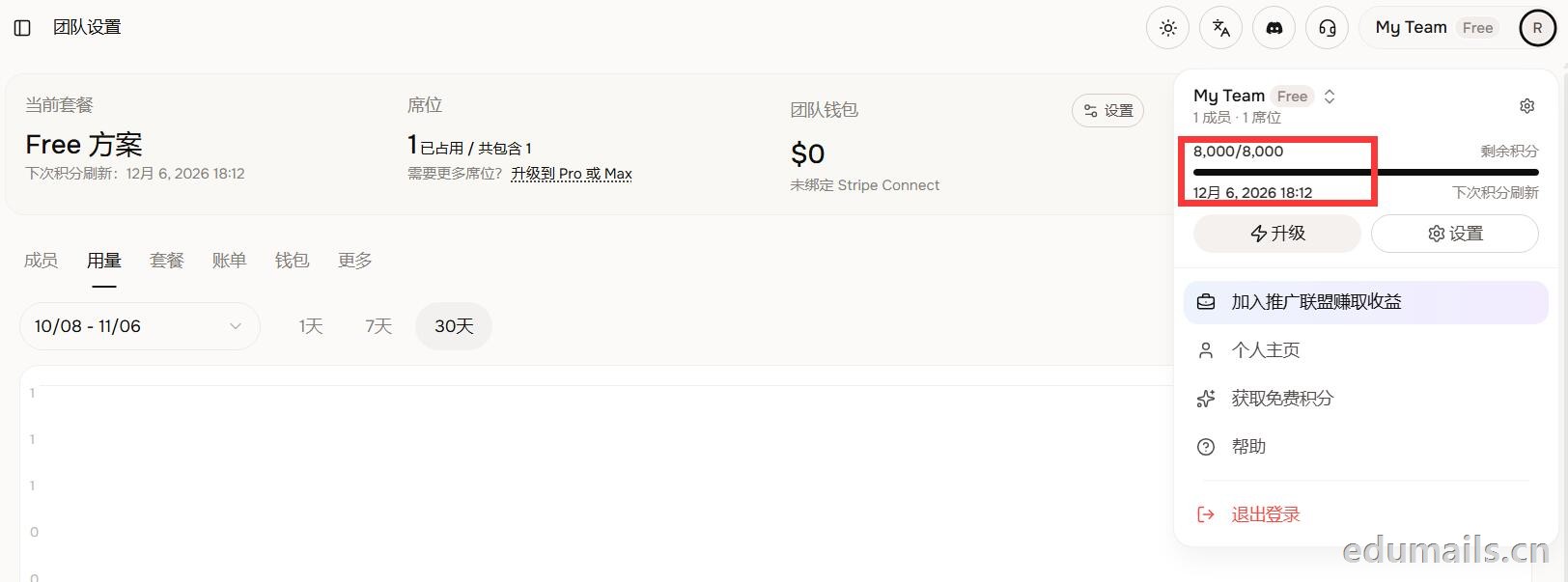 (失败)余额仍卡在8,000/8,000,无任何入账流水,只拿到普通免费版基础额度,属于典型的认证或链接未生效。
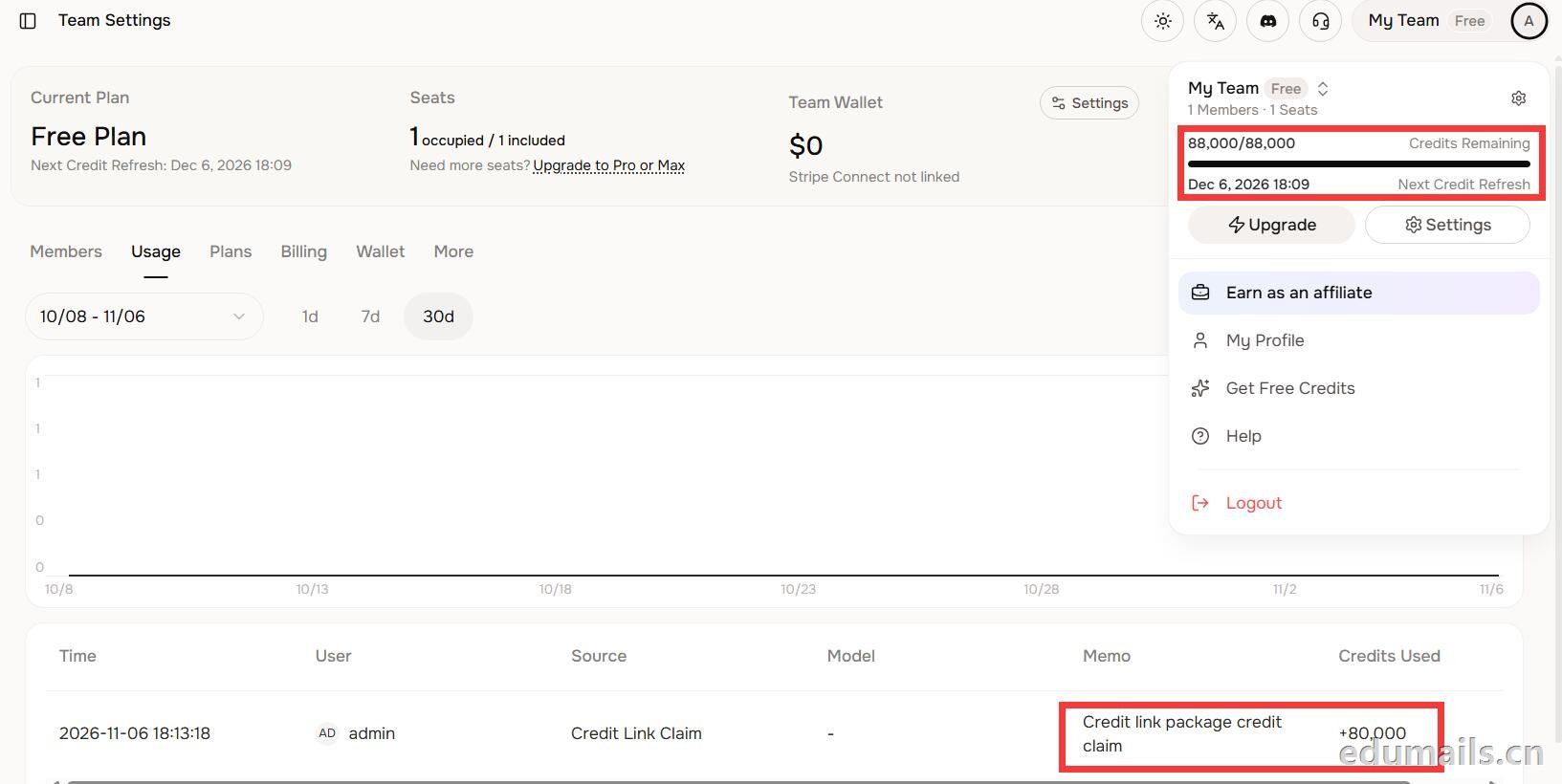 后台显示余额88,000/88,000,下方流水明确记录“Credit link package credit claim +80,000”,说明在基础免费额度(8,000)外,成功白嫖了8万教育包积分,这正好印证了上一轮说的“额外大额积分”,下次刷新在12月6日。
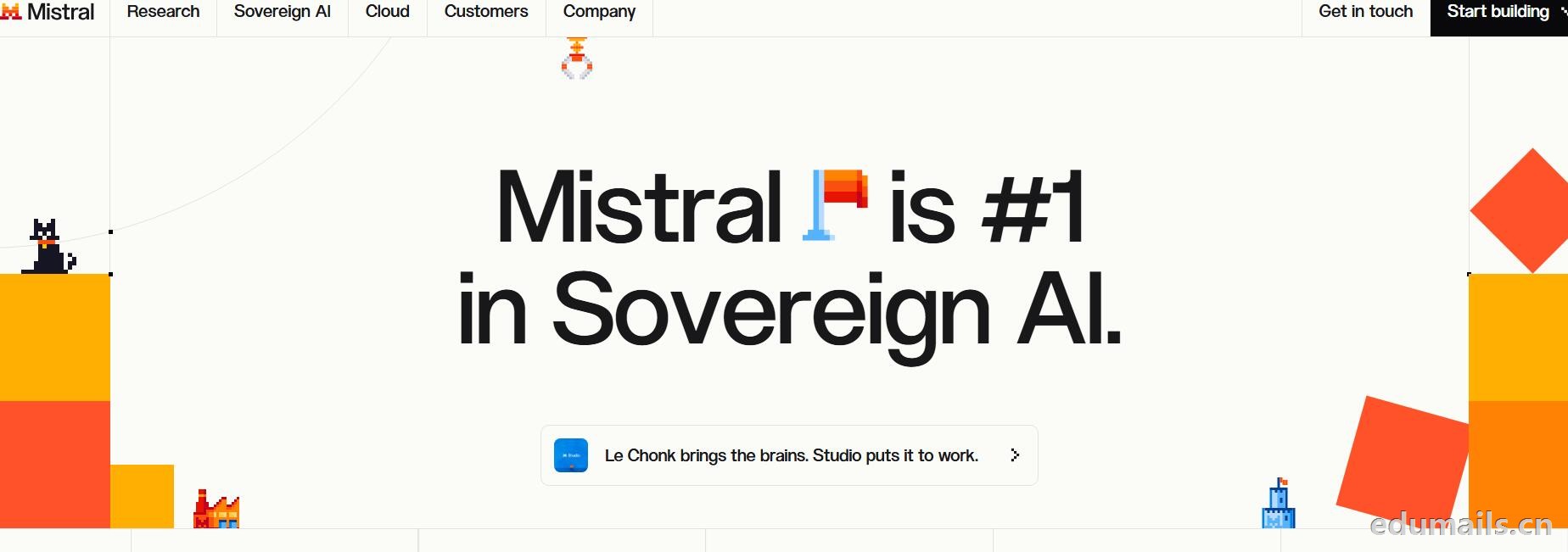
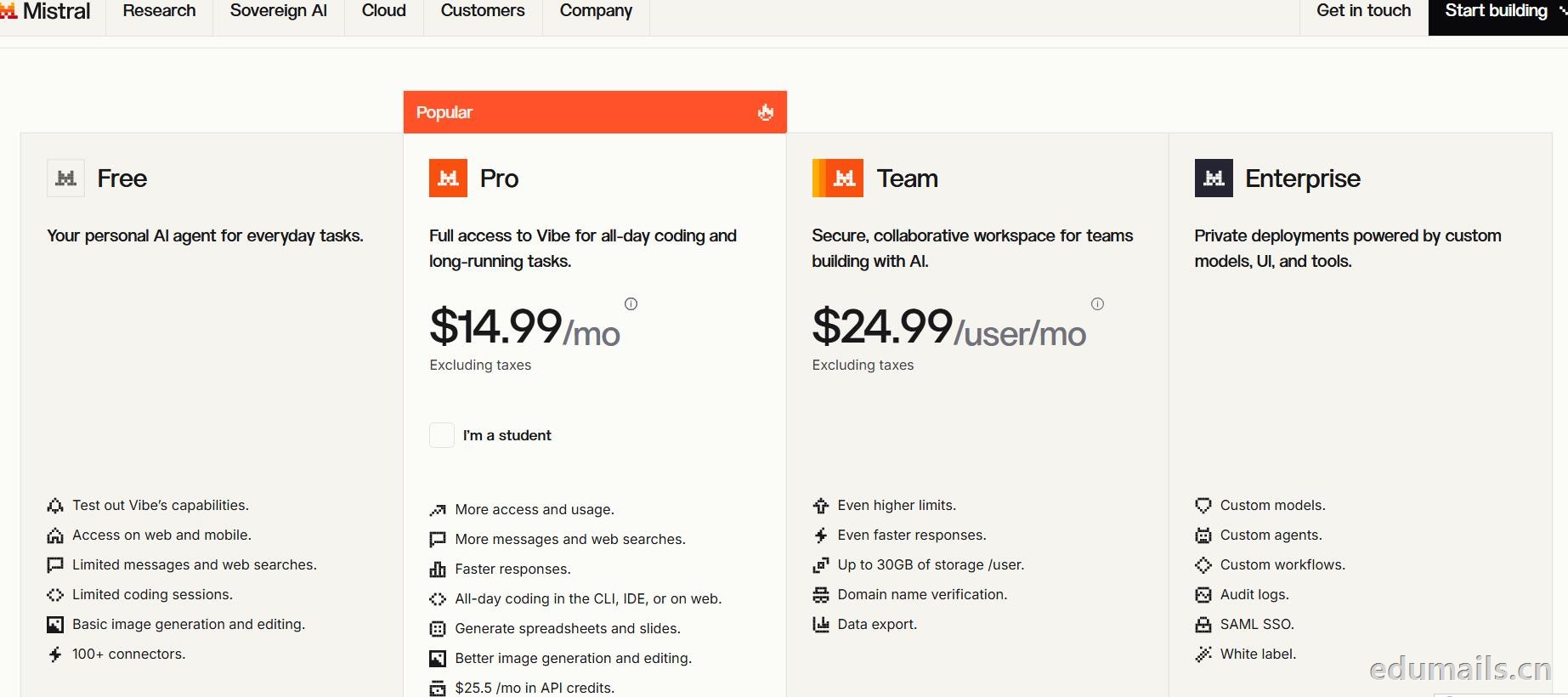
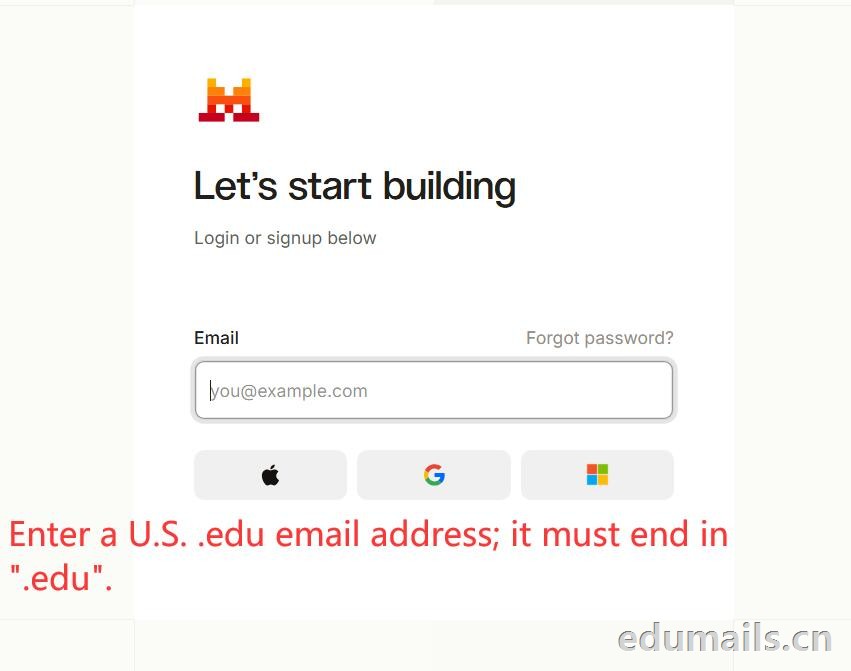
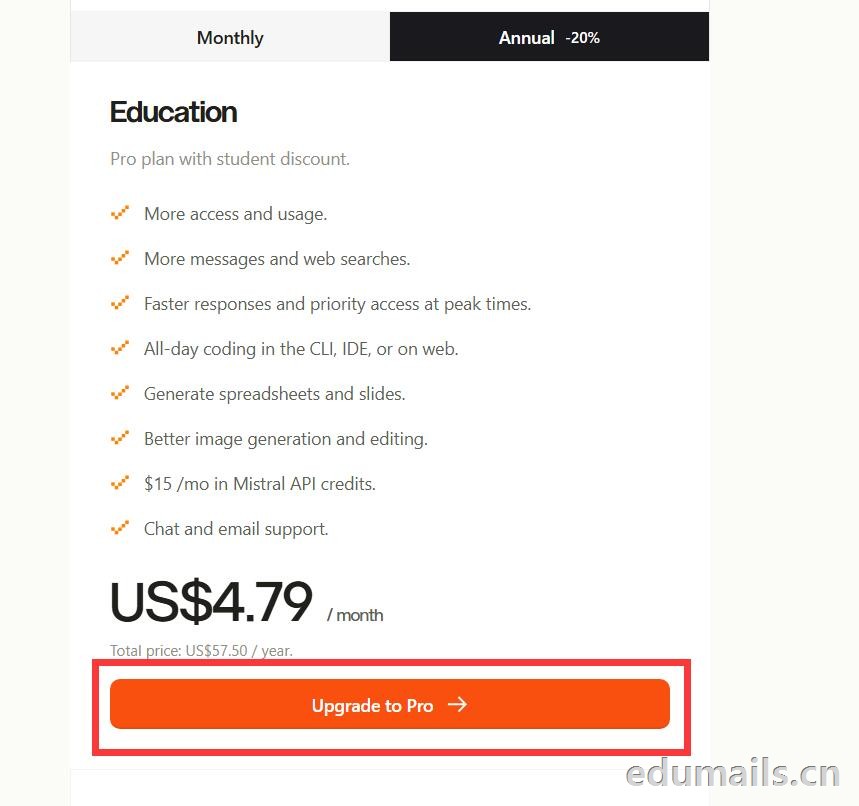
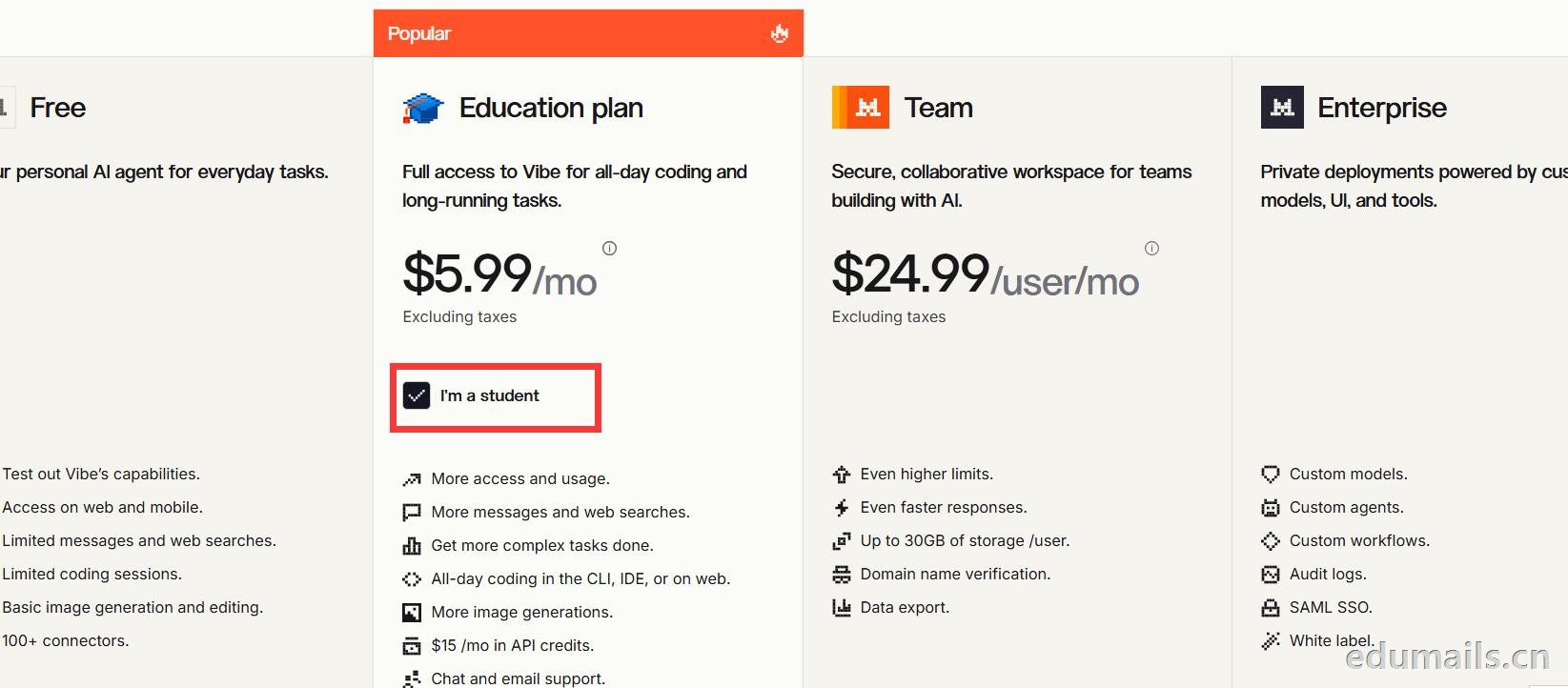 Mistral 的 Education 计划并不是一套独立套餐,而是面向符合条件的学生与教师提供的 Pro 折扣版本。获得优惠的唯一凭证,是由教育机构签发的机构邮箱;Gmail、iCloud、Outlook 等个人或通用域名邮箱无法通过核验,学生证、在读证明、确认信等书面材料也明确不被接受,不能作为替代。
订阅入口位于价格页的「I'm a student」按钮,也可直接打开 Education 计划页面完成流程:既可以用机构邮箱注册一个全新的 Mistral 账号,也可以在已有账号中先把绑定邮箱改为机构邮箱再订阅。
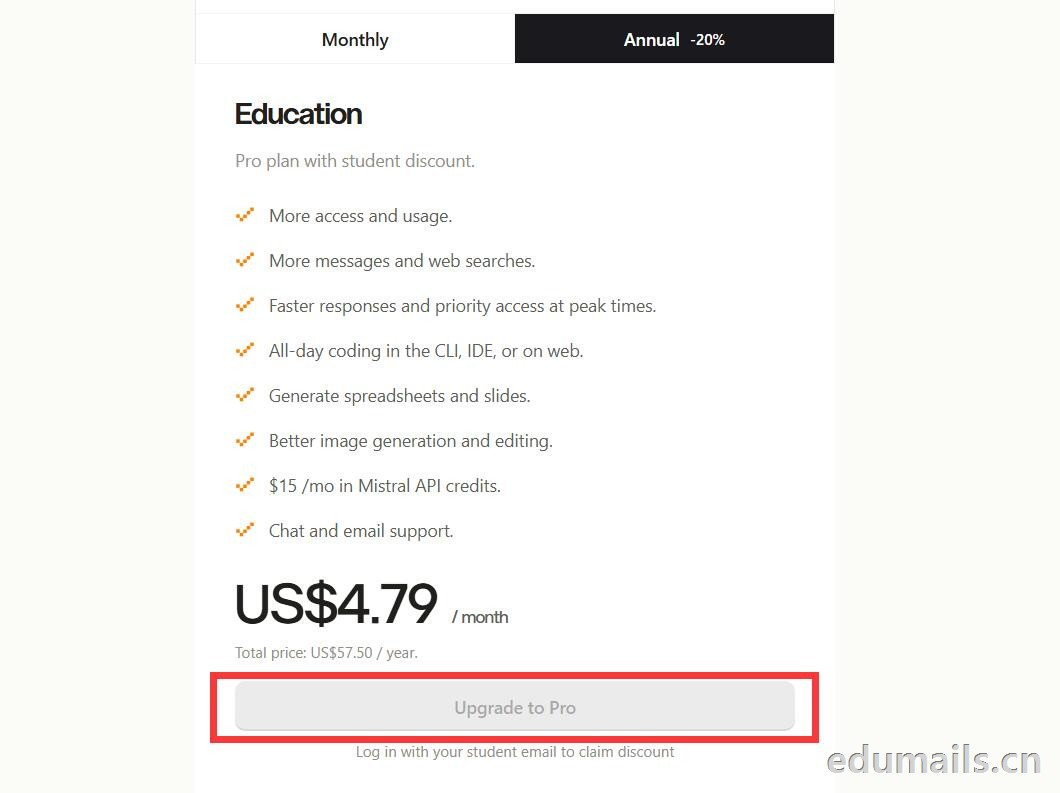
 如果我们的邮箱地址不符合官方学术资格要求,我们点击Upgrade to Pro 是无法点击,为灰色显示。
 如果我们的邮箱地址符合官方学术资格要求,我们点击Upgrade to Pro 是高亮黄色显示,是可以继续点击下一步。
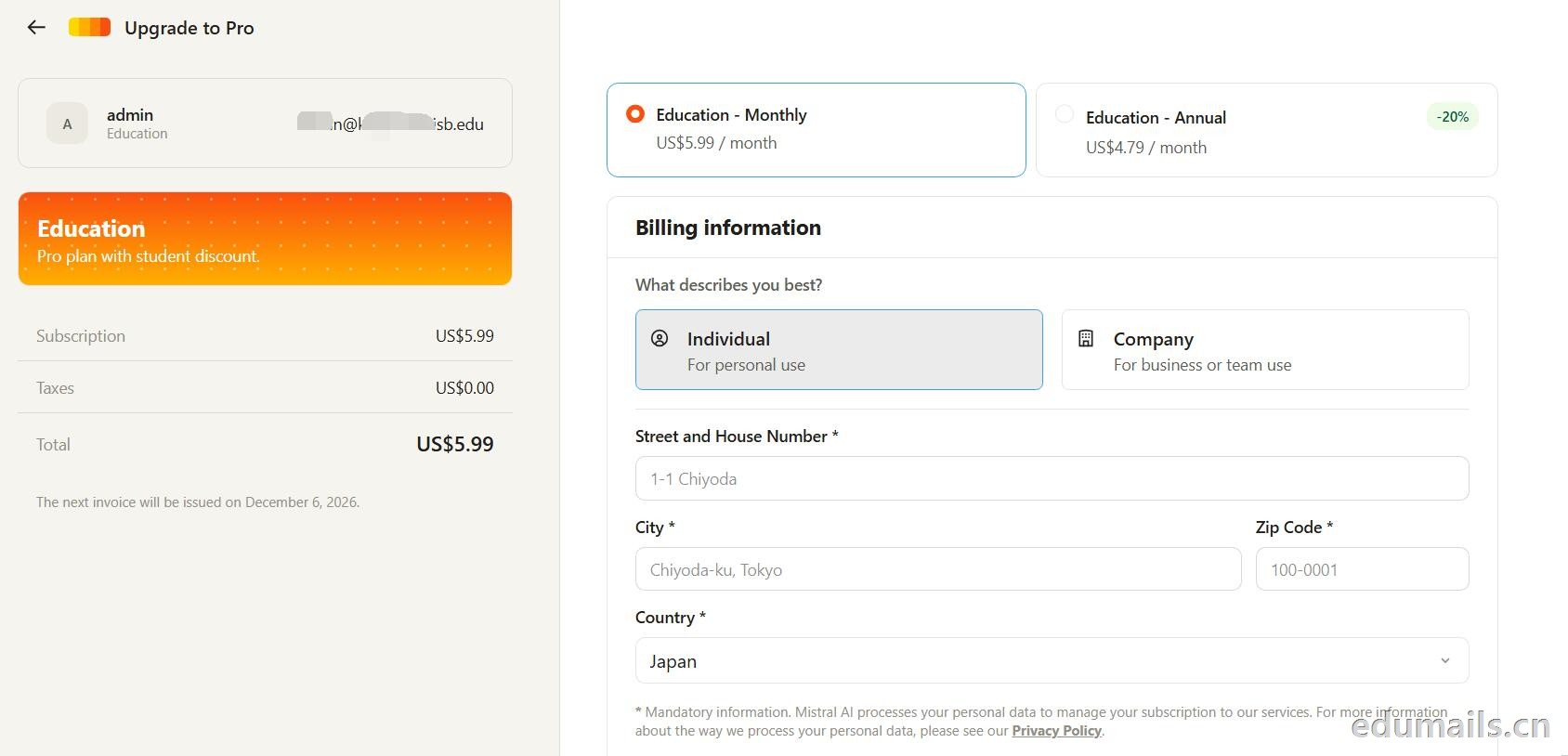 走到支付这一步,教育优惠的折扣感最直观:界面左侧会明确打出“Pro plan with student discount”,只要绑定了


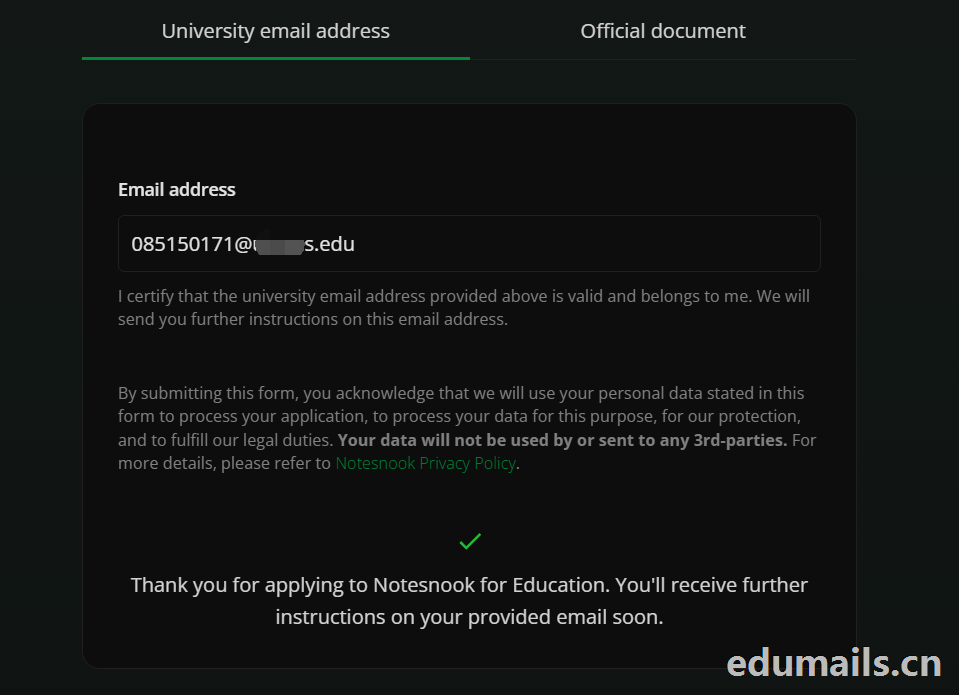 Thank you for applying to Notesnook for Education. You'll receive further instructions on your provided email soon.
如果我们的美国edu邮箱符合秒过要求,则如上图展示效果:感谢您申请 Notesnook 教育版。您很快就会在所提供的邮箱中收到后续指引。
我们打开edu邮箱提示收到
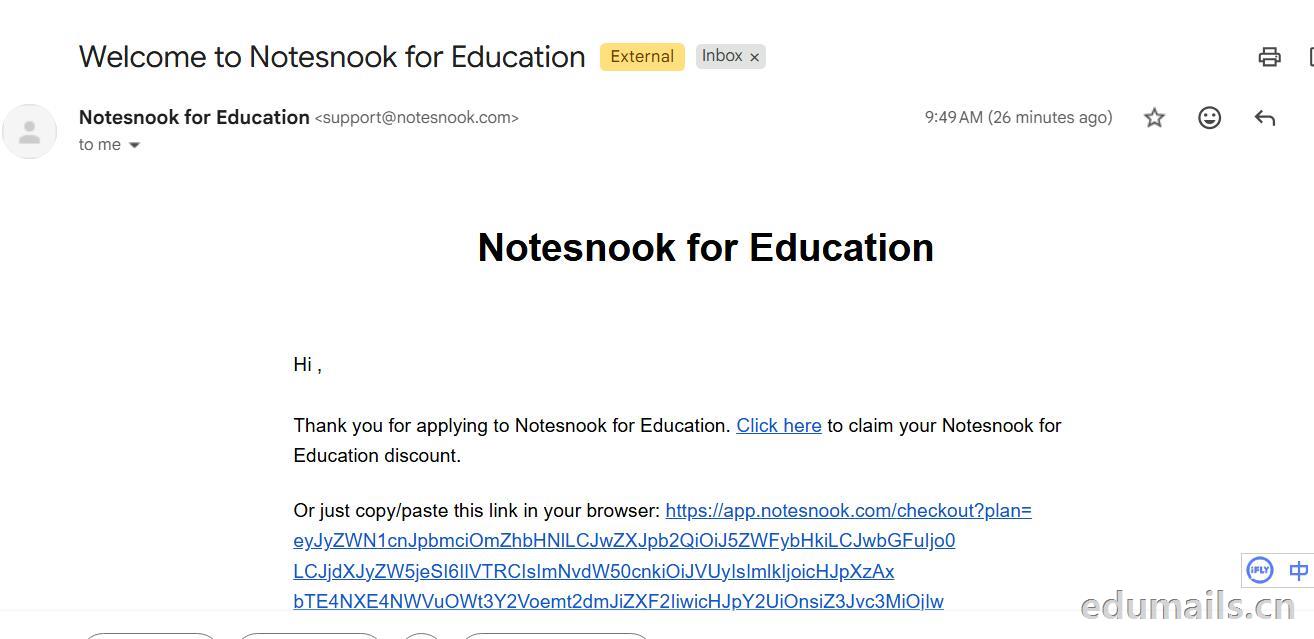 Thank you for applying to Notesnook for Education. Click here to claim your Notesnook for Education discount. 感谢您申请 Notesnook 教育版。点击此处领取您的 Notesnook 教育版折扣。

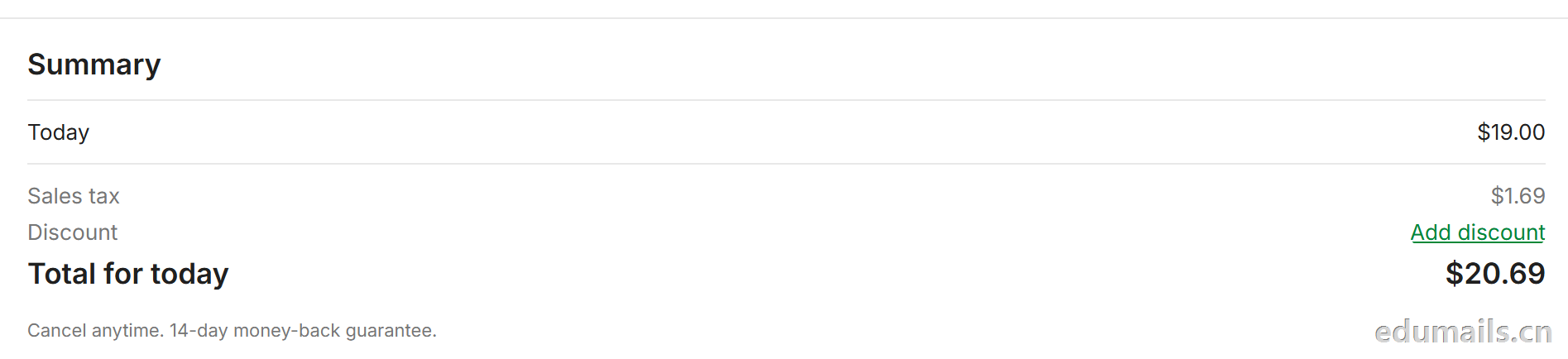 我们看到价格是20美金,官方支持paypal、信用卡支付,如果没有支付方式可以找代付解决。

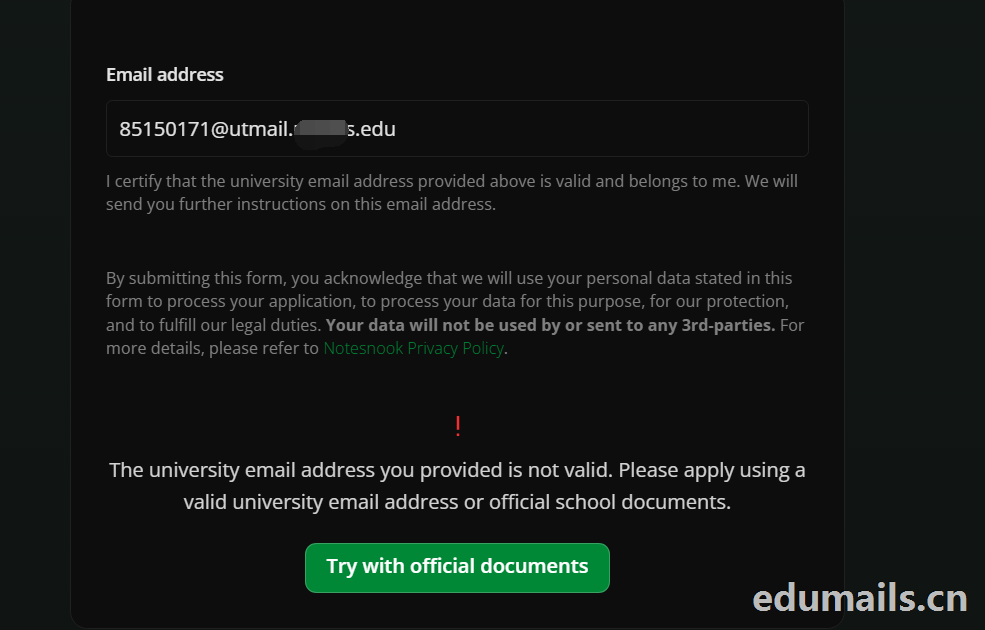 The university email address you provided is not valid. Please apply using a valid university email address or official school documents.
您提供的大学电子邮箱地址无效。请使用有效的大学电子邮箱地址或学校官方文件进行申请。我们点击Try with official documents,按照要求提供相关学校官方文件即可通过。
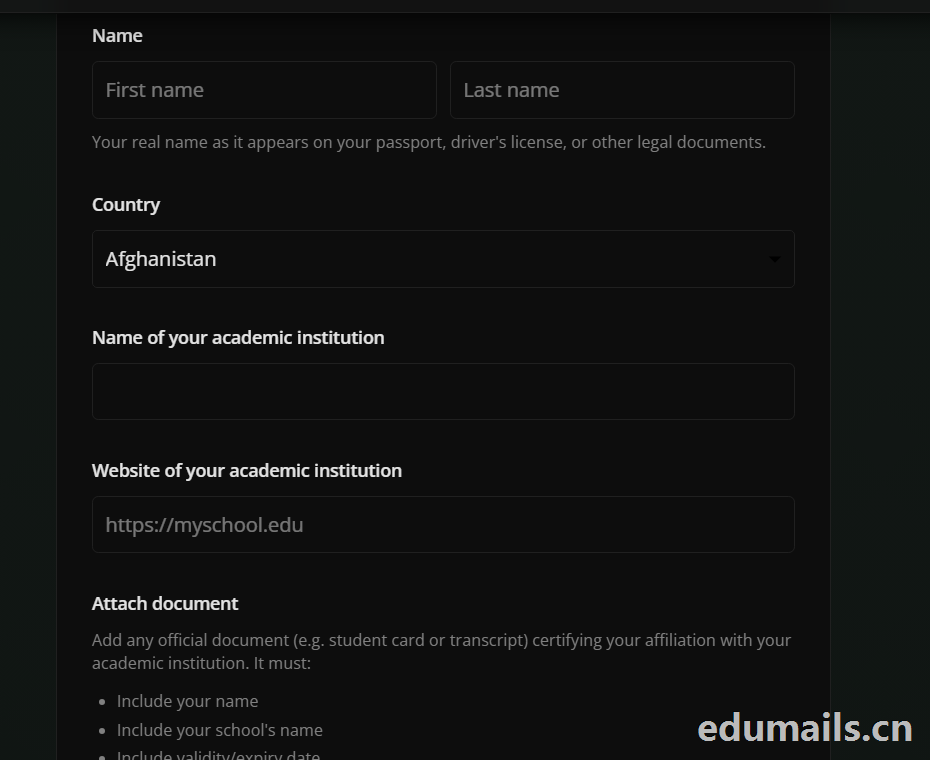
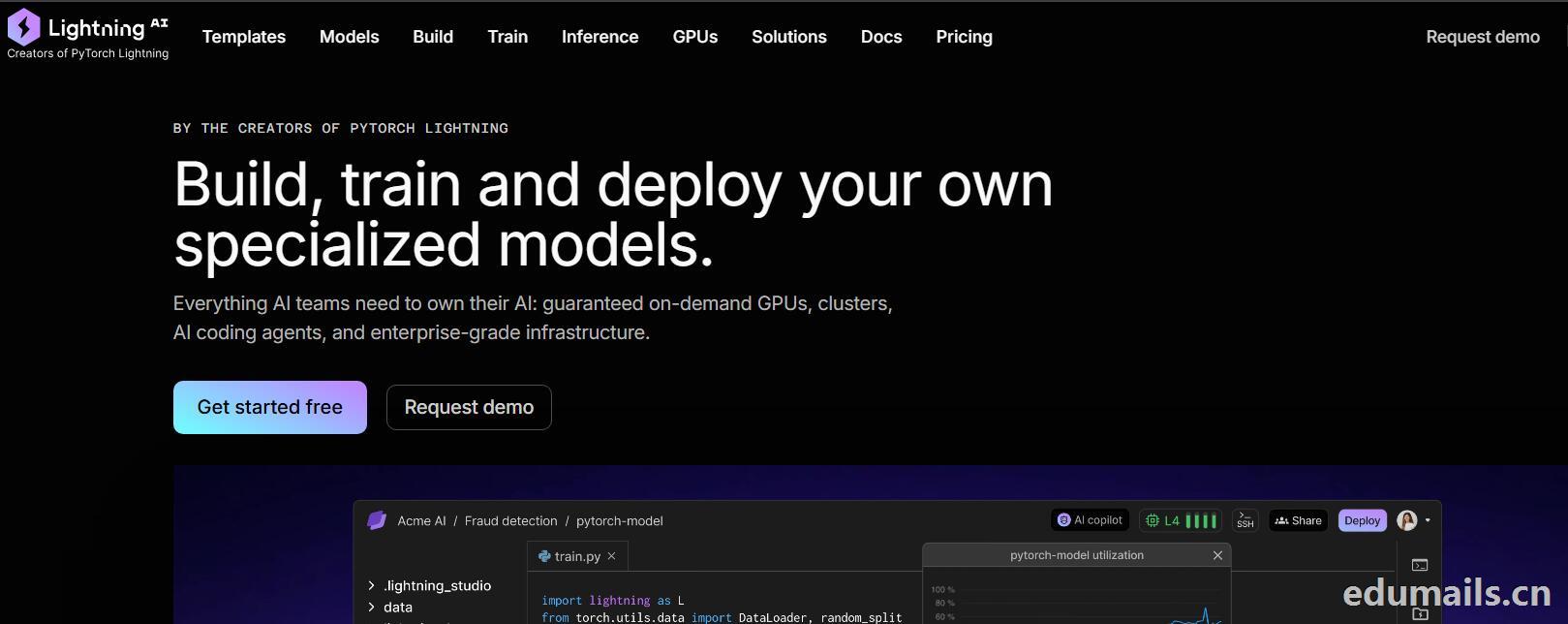

 我们再接着点击Choose Pro,弹出教育资格注册认证页面:如下图所示:Use a work or .edu email for faster verification,使用工作邮箱或 .edu 邮箱以加快验证速度,要求我们必须使用美国.edu结尾邮箱进行注册。
 我们的美国edu邮箱会收到来自no-reply@lightning.ai发送标题为“Confirm your email to finish creating your Lightning AI account”的邮箱验证邮件:
 我们点击完成认证,再次回到价格页面,点击学术价格,弹出如下图所示:
 Select organization to upgrade 我们默认选择即可,提示Upgrade to Academic,会弹出学术价格内容:
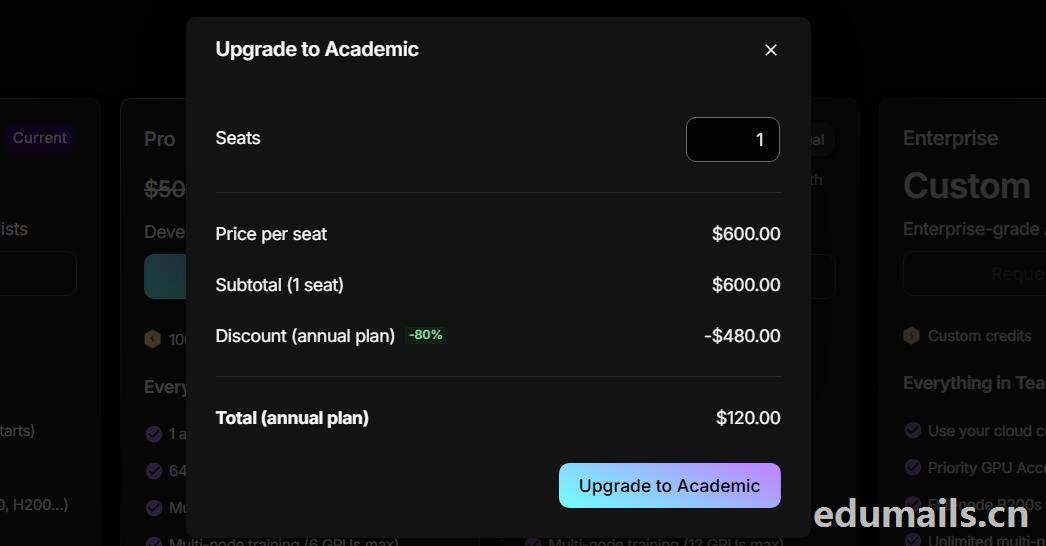 席位(Seats):1 个,每席位原价:$600.00/年,小计(1 个席位):$600.00,年付折扣:-80%,减免 $480.00
最终年付总价:$120.00
最后我们点击:Upgrade to Academic
也就是:学术版 Pro 年付原价 $600,打 2 折后 $120/年,折合 $10/月。需要用学术邮箱/学术身份开通。

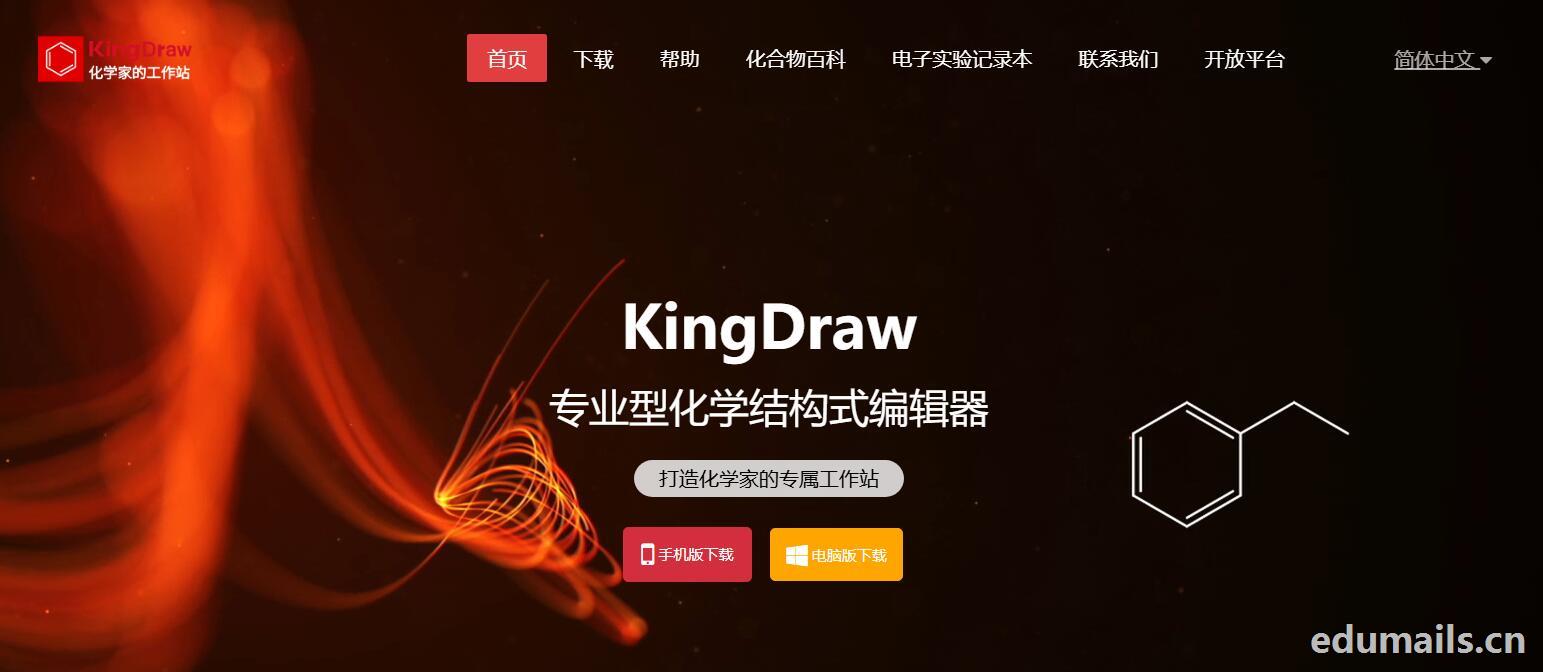
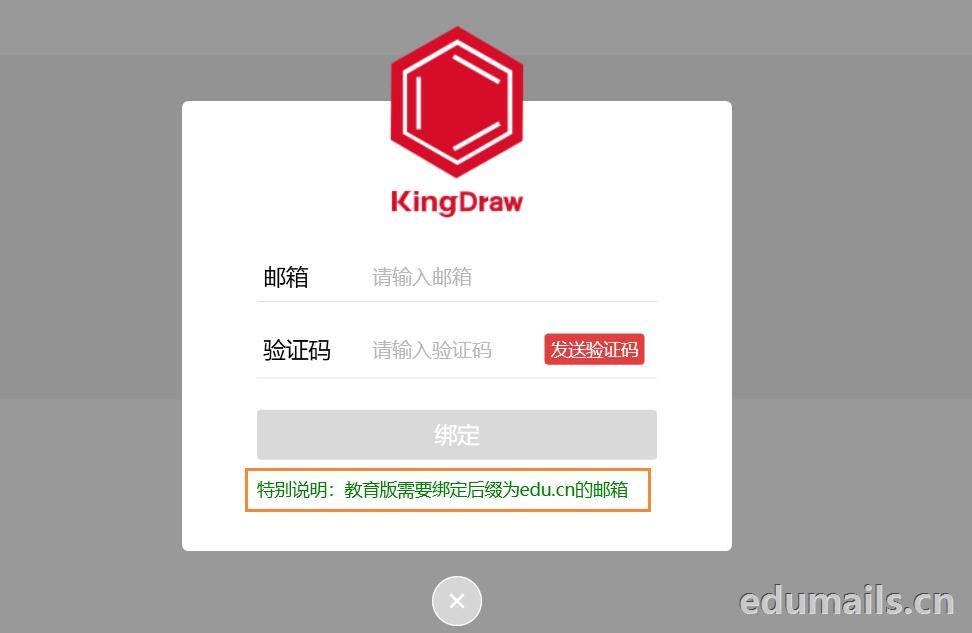
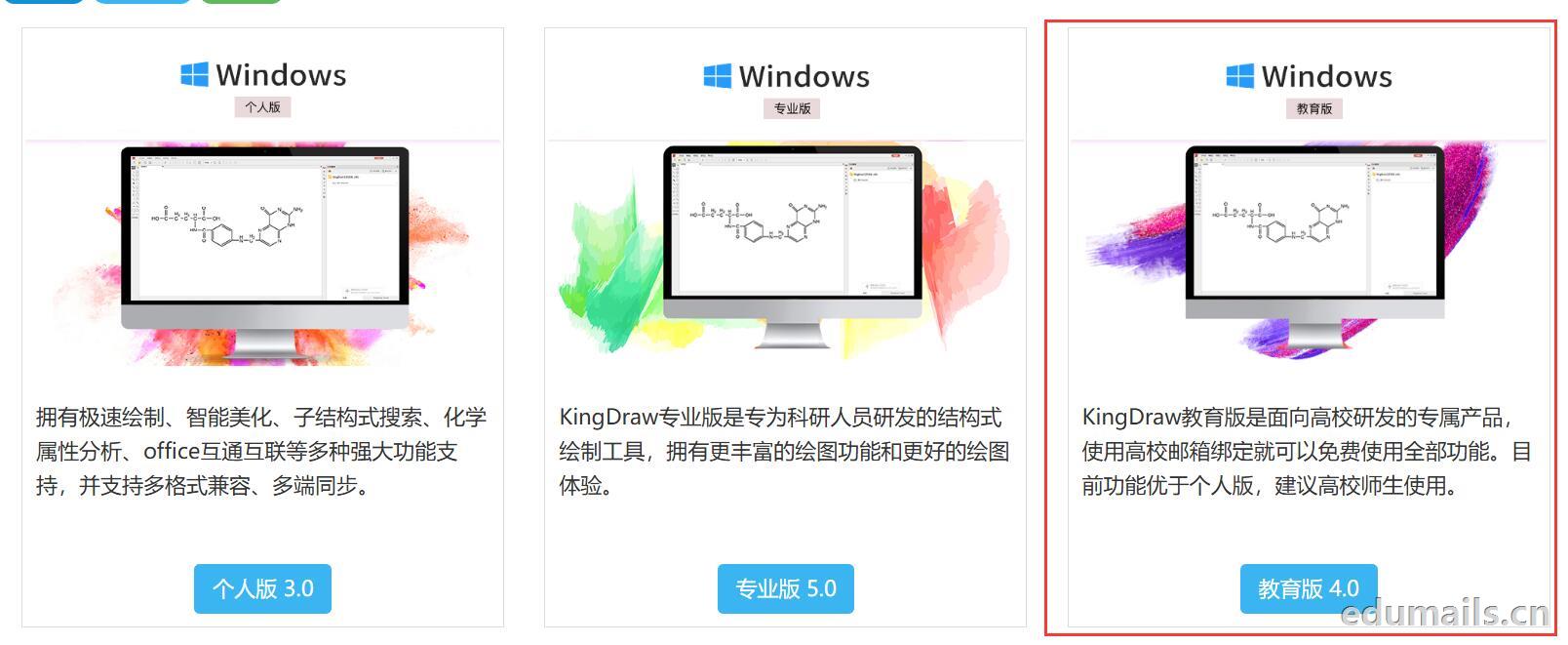 我们下载安装完成KingDraw教育版后,点击登陆提示如下图,我们选择邮箱方式注册,在这里我们可以用任何邮箱注册KingDraw账户。
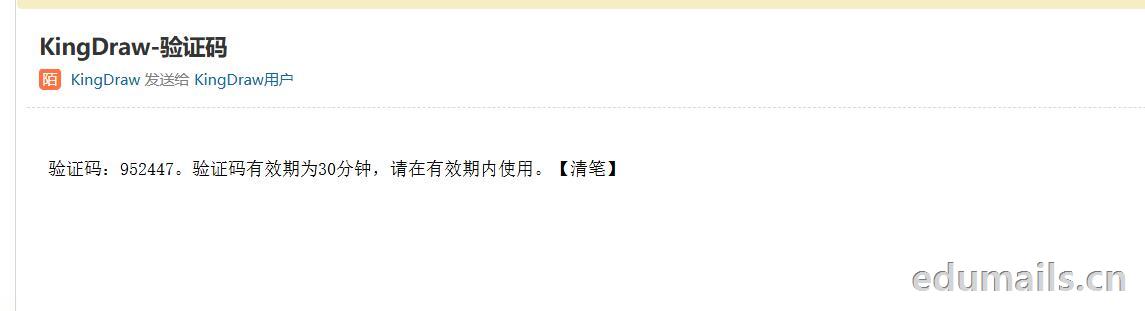
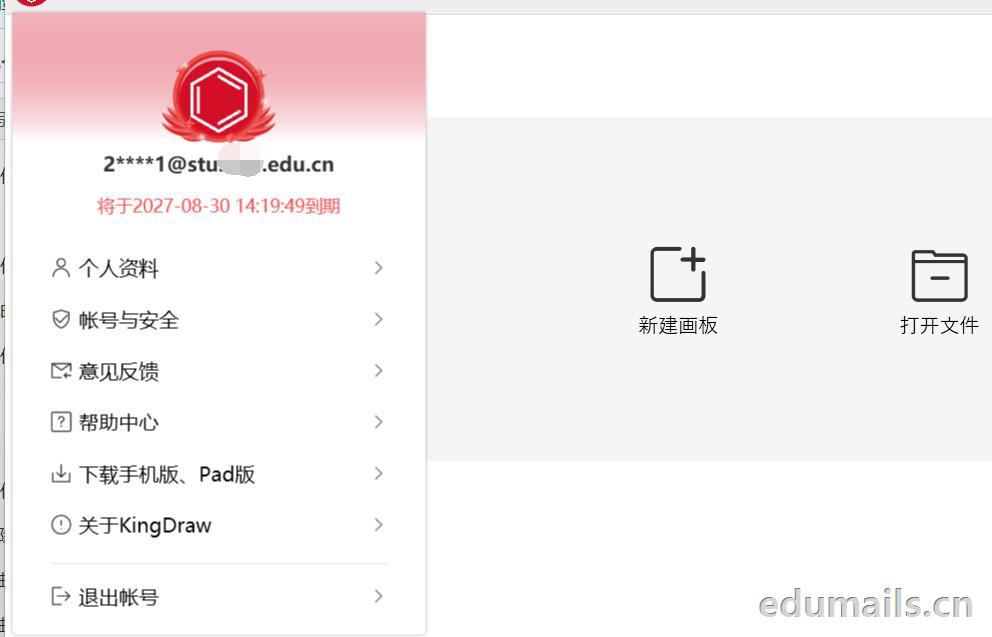
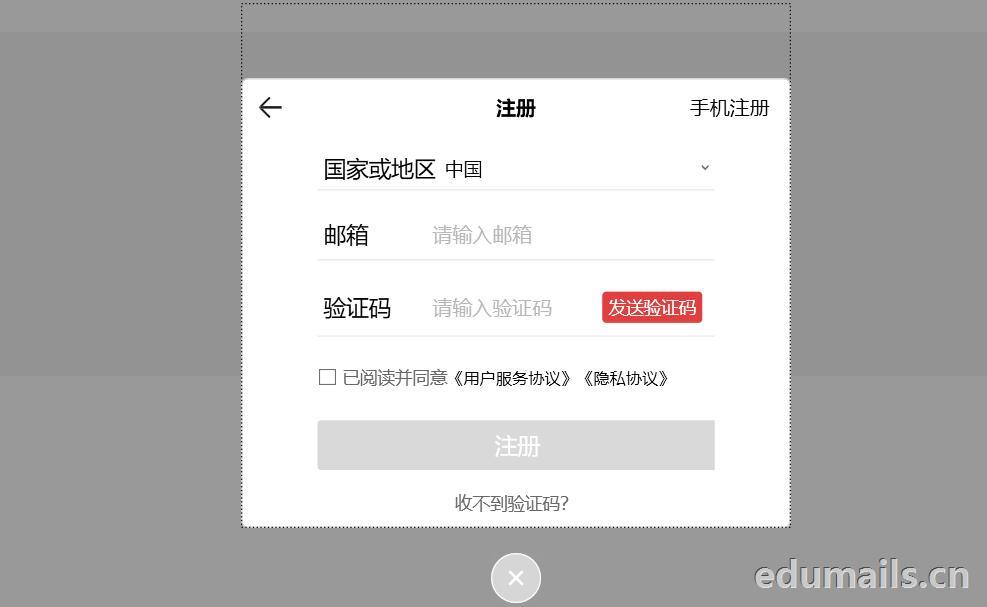 我们用任意邮箱注册完KingDraw账户后,提示绑定educn邮箱,我们可以用代收服务进行educn代收邮件认证。
 https://www.edumails.cn/chemdraw.html

 ZH
 EN
还检查ssn真伪